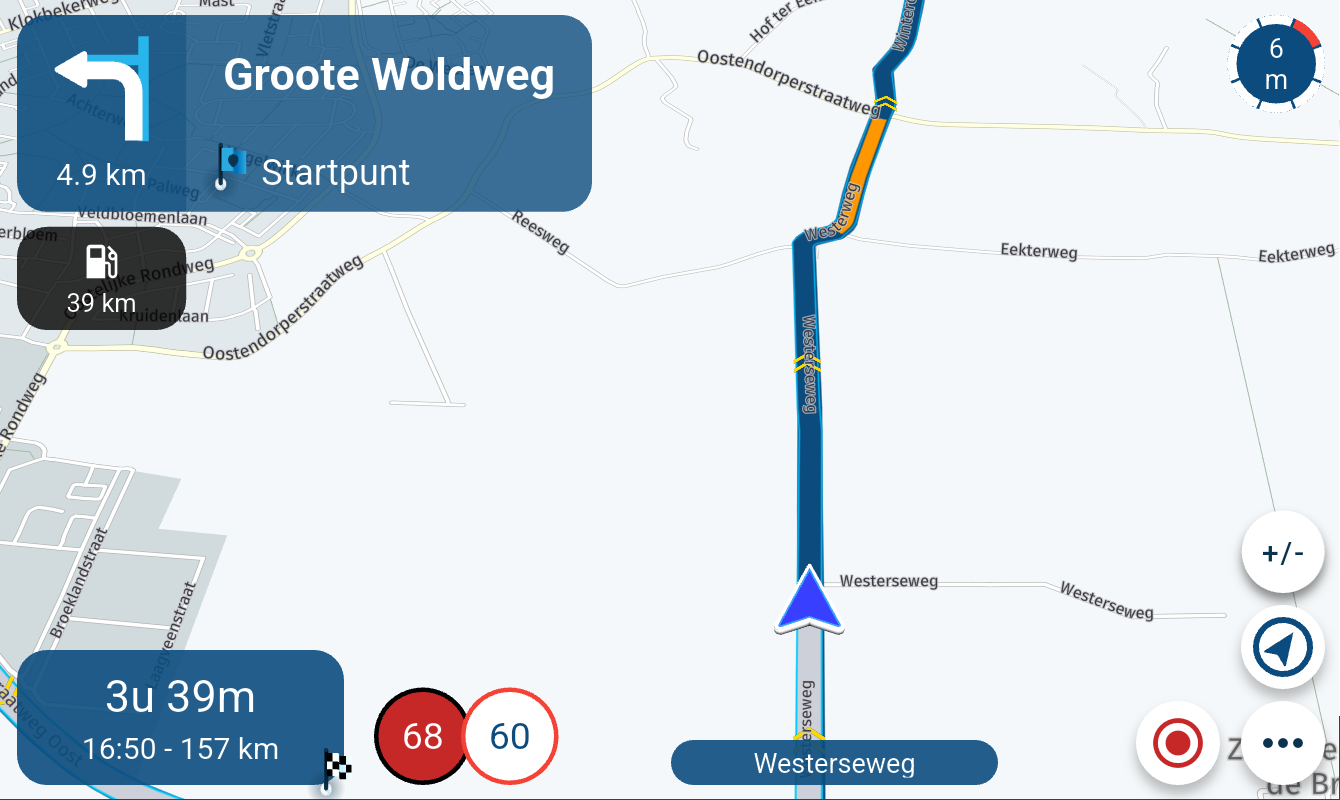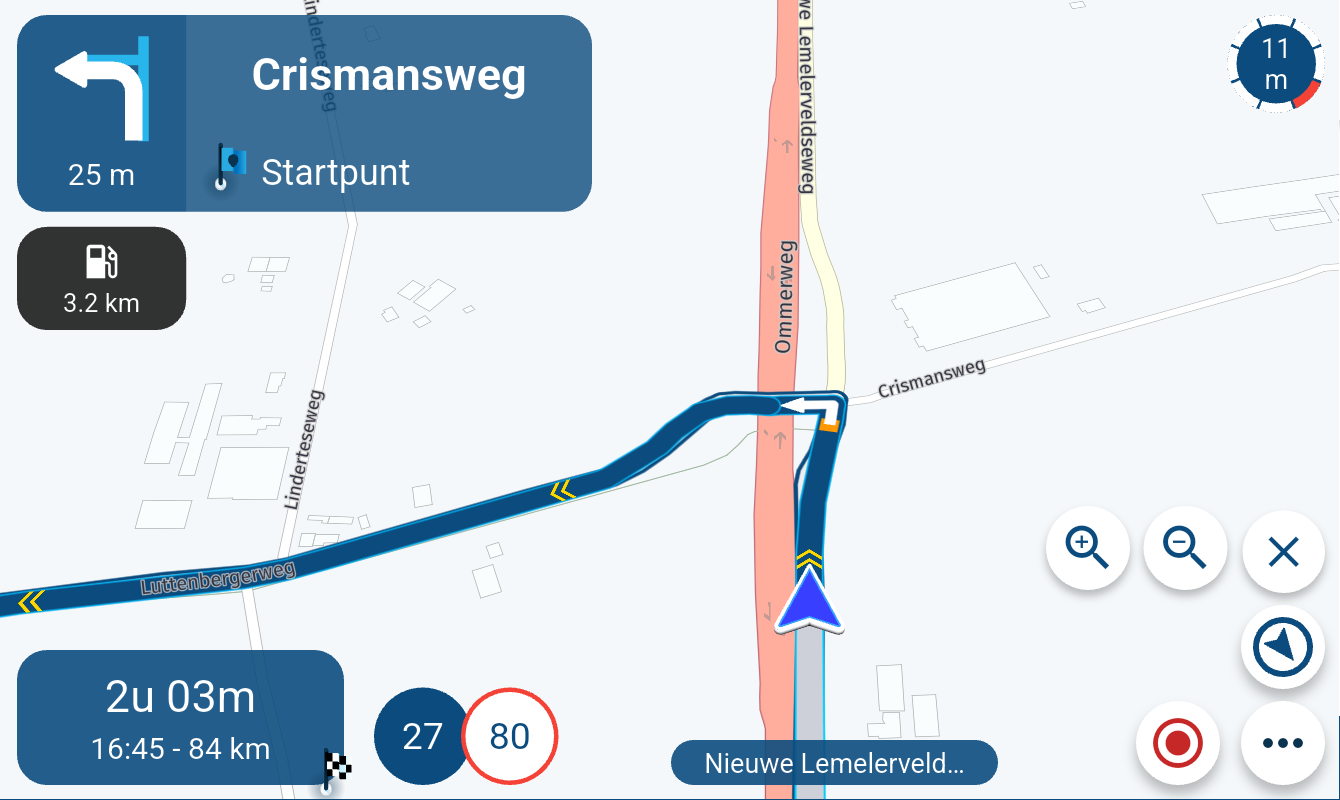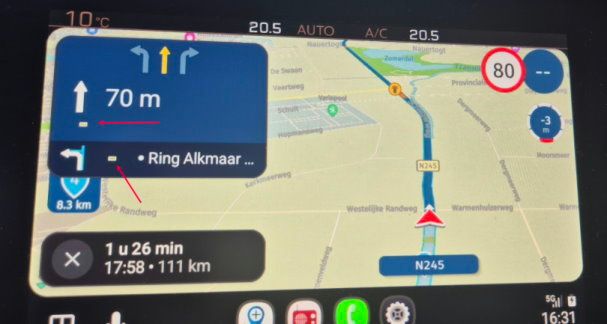
Traffic Aware setting toggle greyed out
-

It is a broad misconception that Offline navigation needs te be enabled for offline maps to be used...
Offline maps will ALWAYS be used when available, even when offline navigation is disabled. Offline navigation tells the app to not use the internet connection while navigating. This has effect on the calculation itself and features like traffic info. Of course offline maps need to be available for offline navigation to work. -
It is a broad misconception that Offline navigation needs te be enabled for offline maps to be used...
Offline maps will ALWAYS be used when available, even when offline navigation is disabled. Offline navigation tells the app to not use the internet connection while navigating. This has effect on the calculation itself and features like traffic info. Of course offline maps need to be available for offline navigation to work.
@Con-Hennekens
I think the term 'offline maps' is often misunderstood. Terms like 'locally saved Maps ' could help prevent such misunderstandings. -
Thanks @Nick-Carthew, that was the answer.

I imagined that in selecting 'Offline navigation', I was just giving MRA permission to use downloaded maps as well as any information it can get from our 'intermittent at best' mobile networks here in the UK. It never occurred to me that it would inhibit MRA from using the mobile connection (when available) to calculate routes. I think I selected it to stop myself getting all those annoying 'offline' messages when riding. I will need to reassess my tolerance levels for them, methinks.
I'd already posted this reply but, about 6 or 7 hours later, I can't see it yet. Maybe it's still awaiting approval, but I've no way of knowing whether that is the case or whether it got lost in the ether so here it is again. Well, part of it anyway. And now I've screwed myself over by accidentally hitting 'submit' after a few words so have to wait an hour to post again because I'm a new user. It ain't easy being a newbie.
Garmin devices are much better in this respect. It's possible to use the local map for navigation and planning whilst also getting live weather and traffic reports via the Tread app. which is then displayed on the Garmin device.

@Stevedo-6-0, Thanks.
Alas, I don't have any other devices. Samsung phone with MRA app on it and a hard-wired Quad Lock charger is as advanced as I go. That and noise-cancelling bluetooth earbuds to hear the instructions.
-
It is a broad misconception that Offline navigation needs te be enabled for offline maps to be used...
Offline maps will ALWAYS be used when available, even when offline navigation is disabled. Offline navigation tells the app to not use the internet connection while navigating. This has effect on the calculation itself and features like traffic info. Of course offline maps need to be available for offline navigation to work.
@Con-Hennekens,
Thank you for your post. That is very useful information to know. Apologies for not having covered it for myself by reading the manuals sufficiently to have found it.
-
@Peter-Burch-1-0 Hi, Peter!
To your first question - can you access and navigate any route normally on theh App aside from the slider issue? If you can - I am not sure what's up.
If you can not - open the Web route planner, log in and click on Subscriptions to make sure that it lists both the Route planner and Navigation next. If you don't see the Navigation Next as purchased - open a support ticket. (Somehow it looks like your Nav subscription is not active).On your phone, open the MRA App, tap your profile (upper right), scroll down and verify the App version. The latest for Android id 5.2.1-488.
As far as the volume issue - according to the development team the Android release 5.2.1-488 has dealt with volume issues. I did not verify the latest performance myself.
Personally I have an App on my Android called "Good Lock".
It has a section dedicated to setting individual volume levels to any and all the Apps you have.Hope that helps.
Thank you for the information about Good Lock.
I've enabled it (it seems to be part of the Samsung UI operating system out of the box) and set it up as per the screenshot here.
Alas it doesn't seem to make any difference.
MRA still overpowers the volume of YouTube such that I can't follow the audio on whatever I'm listening to.
Any other ideas? The volume button built-in to MRA just seems to alter the global media volume when the slider is use.
Thank you.

-
Sorry all, for the duplicate and erroneous posts above. I can't seem to find an 'edit post' or 'delete post' function on this bulletin board. Only 'delete thread'.
Edited to add that I've found an 'edit' button. Maybe I can tidy up the mess above after all?

Further edited to add that only this and the previous post allow editing. I guess you only get that privilege after a few posts? Anyway, we're stuck with the mess above (unless a mod wants to delete posts #6 & #7 from this thread?).
2016 Yamaha FJR1300 (but a 2013 5-speed model with regular suspension) & 2016 Harley Breakout 107 cu-in.
Samsung S24 Ultra w/Quad Lock protection & mountings.
Lifetime Gold & Navigation Next. -
Sorry all, for the duplicate and erroneous posts above. I can't seem to find an 'edit post' or 'delete post' function on this bulletin board. Only 'delete thread'.
Edited to add that I've found an 'edit' button. Maybe I can tidy up the mess above after all?
Further edited to add that only this and the previous post allow editing. I guess you only get that privilege after a few posts? Anyway, we're stuck with the mess above (unless a mod wants to delete posts #6 & #7 from this thread?).
Ah... looks like you can only edit relatively recent posts, as the option to edit the post above is no longer there. I'm learning.
Anyway, I see I missed* adding the screenshot to my post above in reply to @lennyo and I can't edit it in now, so here it is.
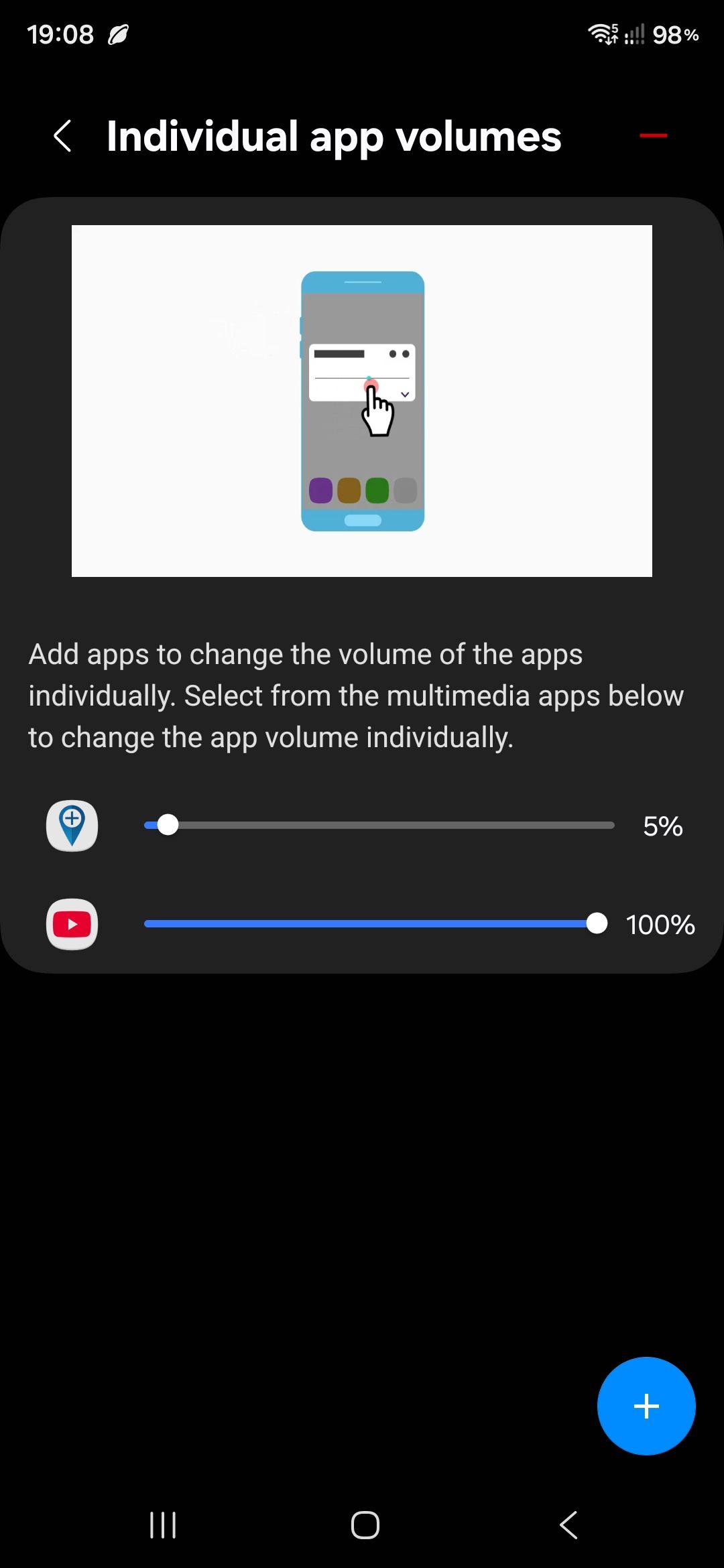
*I received an insurance related phone call which distracted me. :can't seem to find a male 'face palm' emoticon:
-
Ah... looks like you can only edit relatively recent posts, as the option to edit the post above is no longer there. I'm learning.
Anyway, I see I missed* adding the screenshot to my post above in reply to @lennyo and I can't edit it in now, so here it is.
*I received an insurance related phone call which distracted me. :can't seem to find a male 'face palm' emoticon:

@Peter-Burch-1-0 Peter, I am sorry the Good Lock did not work for you.
I am starting to have the issues where the Nav Directions are too quiet.... and the music is not going down in volume when I play YouTube Music app.... Go figure... -
Ah... looks like you can only edit relatively recent posts, as the option to edit the post above is no longer there. I'm learning.
Anyway, I see I missed* adding the screenshot to my post above in reply to @lennyo and I can't edit it in now, so here it is.
*I received an insurance related phone call which distracted me. :can't seem to find a male 'face palm' emoticon:
Oh dear @lennyo, sorry to hear that you're having problems too.
There's probably a fix out there in the ether, but as with most of this new tech, it's like searching for the Holy Grail sometimes.a
I wonder whether there is a third party app that will work better? I'll do some research when I can find time.
Cheers!
Edit: This is my first search. Showed up a possibility. Volume Styles app might do the trick. It says 'in app purchases' so I don't know how much the premium version is (although one reviewer says £3 and I don't mind paying that kind of money). I'll try it and report back.
-
@Peter-Burch-1-0 Peter, I am sorry the Good Lock did not work for you.
I am starting to have the issues where the Nav Directions are too quiet.... and the music is not going down in volume when I play YouTube Music app.... Go figure...
I got the following (admittedly AI generated) results from a search on how to make Good Lock work with individual app volumes:
Using Good Lock to Control App Volume
To limit the volume of individual apps on your Samsung device, you can utilize the Good Lock app along with its Sound Assistant module. Here’s how to set it up:
Installation StepsDownload Good Lock: Go to the Galaxy Store and search for "Good Lock." Install the app on your Samsung device. Install Sound Assistant: Open Good Lock and find the Sound Assistant module. Download and install it.Adjusting App Volume
Once you have Sound Assistant installed, follow these steps to customize the volume for each app:
Open Sound Assistant:
    Launch the Sound Assistant app from your app drawer.

Access Volume Panel:
    Tap on the volume button on your device.
    Look for the three dots at the top of the volume slider and tap it to expand the panel.

Customize Volume Levels:
    You will see a list of currently open apps.
    Adjust the volume sliders for each app individually to set your desired levels.
Key Features of Sound Assistant
Independent Volume Control: Control media, ringtone, alarm, and notification volumes separately for each app.
Volume Profiles: Set different volume profiles for various situations (e.g., work, home).
Custom Volume Panel: Customize how the volume panel appears and behaves.
By following these steps, you can effectively manage the volume levels of different apps on your Samsung device, ensuring a tailored audio experience.
Unfortunately, I don't get the list of currently open apps when I click on the three dots on the volume slider and the panel doesn't expand for me.
I plan to investigate the Volume Styles and Precise Volume apps today or tomorrow.
-
@Peter-Burch-1-0 Peter, I am sorry the Good Lock did not work for you.
I am starting to have the issues where the Nav Directions are too quiet.... and the music is not going down in volume when I play YouTube Music app.... Go figure...
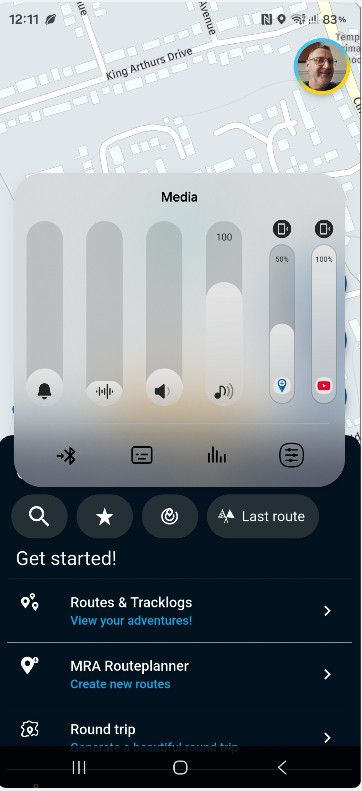
Sussed it... I hadn't customised the volume panel. The AI search missed out this important step. This page has the proper guide on how to do it (although I haven't tested the results out yet).
https://www.howtogeek.com/796399/how-to-adjust-volume-for-individual-apps-on-samsung-galaxy-phones/
I now get this as a volume panel. I'd be surprised if things don't work as I want now.
2016 Yamaha FJR1300 (but a 2013 5-speed model with regular suspension) & 2016 Harley Breakout 107 cu-in.
Samsung S24 Ultra w/Quad Lock protection & mountings.
Lifetime Gold & Navigation Next. -
Sussed it... I hadn't customised the volume panel. The AI search missed out this important step. This page has the proper guide on how to do it (although I haven't tested the results out yet).
https://www.howtogeek.com/796399/how-to-adjust-volume-for-individual-apps-on-samsung-galaxy-phones/
I now get this as a volume panel. I'd be surprised if things don't work as I want now.
@Peter-Burch-1-0 Thanks, Peter! This floating panel is just for convenience, I am afraid.
If you used a standard panel with horisontal sliders, it does the same thing, but to change the volume is more steps. I am not sure if this will really yield a result you are after... But, please, let us know what happens.
P.S. I opted for a floating button to bring up this panel (as far as the position on the screen).
Tap the button, then 3 dots and Voila!, the panel appears.Positive emotions are worth every penny ;)
-
@Peter-Burch-1-0 Thanks, Peter! This floating panel is just for convenience, I am afraid.
If you used a standard panel with horisontal sliders, it does the same thing, but to change the volume is more steps. I am not sure if this will really yield a result you are after... But, please, let us know what happens.
P.S. I opted for a floating button to bring up this panel (as far as the position on the screen).
Tap the button, then 3 dots and Voila!, the panel appears.
Alas it made no different whatsoever. With the slider for MRA set to zero, it's still full volume and drowning out YouTube.
Back to the drawing board.
Anyway, as the main reason for me creating this thread is now solved, and the thread title doesn't reflect these sound issues, I think I'll leave it there for now on this thread and start a new thread asking the volume question again or providing a solution if I find one with any of the third party apps.
Thanks all for the replies and sorry again for all the duplicate posts earlier.
-
I think I've cracked it...
In the Good Lock Sound Assistant settings, if you scroll way down there is a setting "Maintain media volume while using navigation". Selecting this to 'on' while having MRA set at 10% in the "Individual app volumes" with YouTube set to 100% seems to provide something akin to what I'm trying to achieve.
Thanks for putting me onto Good Lock, @lennyo . Certainly seems better than the Precise Volume app which wasn't suitable in any way at all.
Hello! It looks like you're interested in this conversation, but you don't have an account yet.
Getting fed up of having to scroll through the same posts each visit? When you register for an account, you'll always come back to exactly where you were before, and choose to be notified of new replies (either via email, or push notification). You'll also be able to save bookmarks and upvote posts to show your appreciation to other community members.
With your input, this post could be even better 💗
Register Login-
 8935.2k
-
 07185
07185
-
 0572
0572
-
 1477
1477
-
 0476
0476
-
04159
-
 0416
0416
-
0319