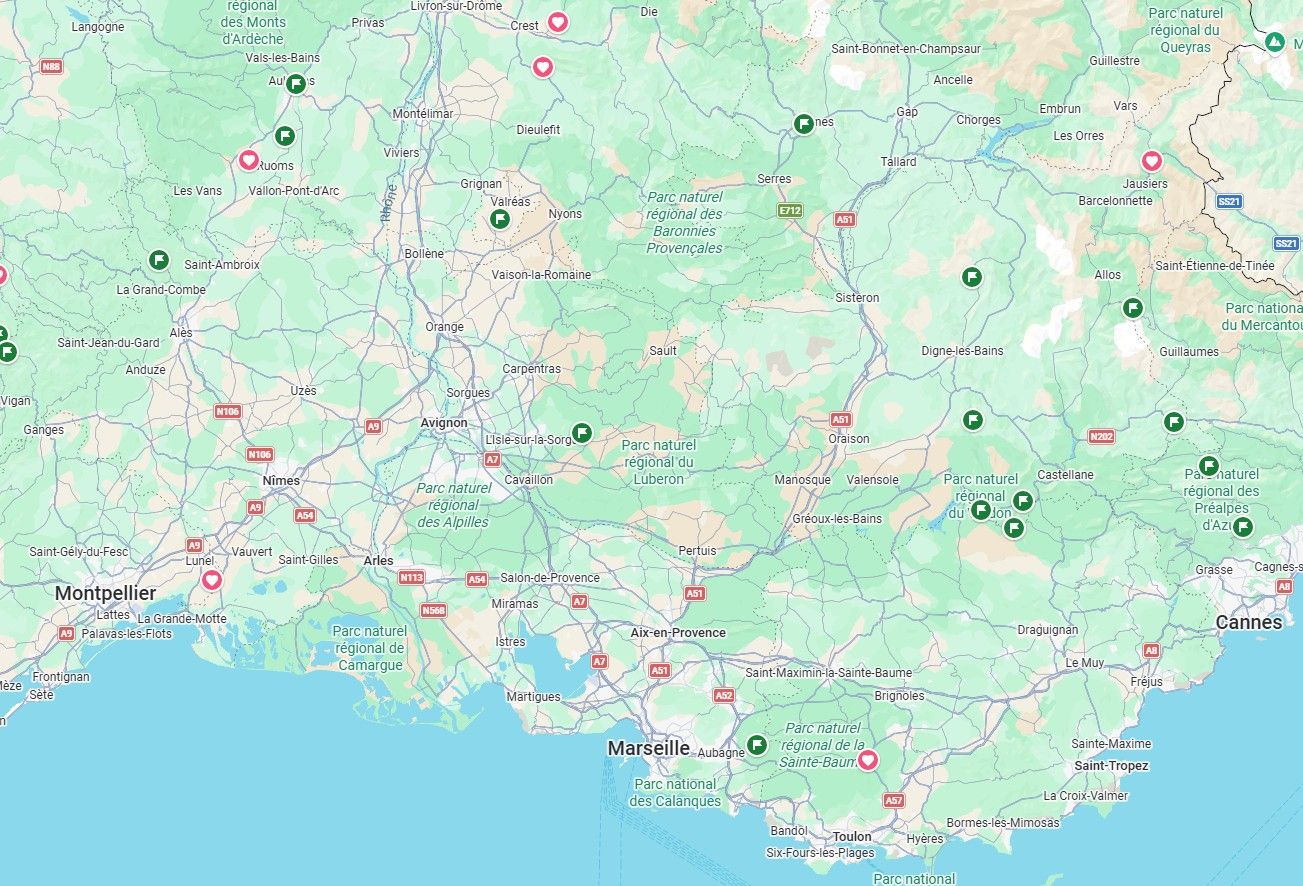
Favorites always visible on map
-

What is possible, is to save them all as POI's in a GPX file. And then import them as POI-file.
Just a temporary work around! -

well my favorites change by day because I keep on chasing old castles, viewpoints, campsites and crazy roads on google maps where I save them on...
-

With the MRA next app you can make them visible on you're phone maps . Click on favorites and set to favorites always visible.
-
but i want to have them always visible when making routes on my pc
-
well my favorites change by day because I keep on chasing old castles, viewpoints, campsites and crazy roads on google maps where I save them on...
well my favorites change by day because I keep on chasing old castles, viewpoints, campsites and crazy roads on google maps
In that case, I’d make them ‘Points of Interest’ rather than ‘favourites’
-
But then they are also not always on every map and in each new route I start. Some places / campsites I often come back so it's easy to have them always visible omn the map.
-
But then they are also not always on every map and in each new route I start. Some places / campsites I often come back so it's easy to have them always visible omn the map.

If you select the profile icon for your POI list they will be visible in all of your routes and on your navigation app.
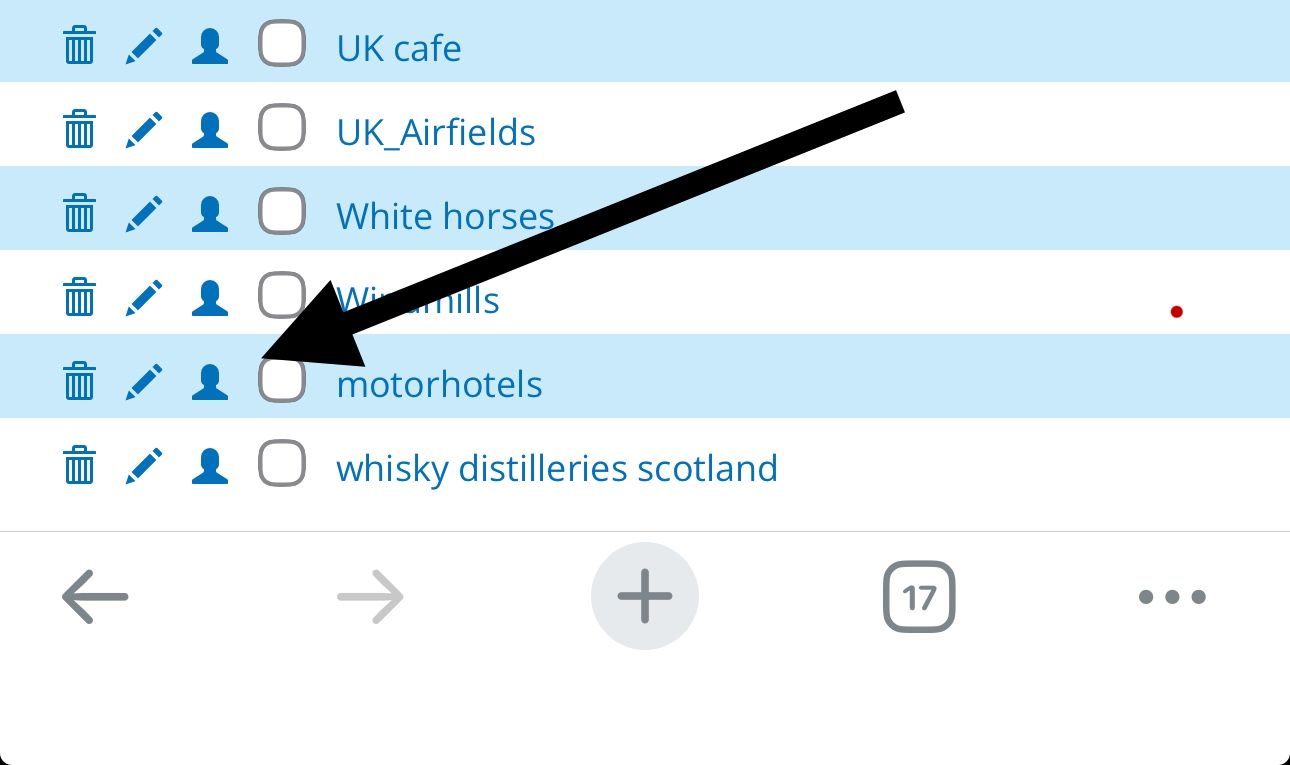
-
Then they are stil in 1 route and not in all my route files
-
Then they are stil in 1 route and not in all my route files
@Pim-van-Dongen Selecting the profile icon makes that category of POIs from your POI library visible in ALL routes including when using the navigation app.
Make your favourites into POIs and then upload them to your POI library to achieve this.
-
Then they are stil in 1 route and not in all my route files
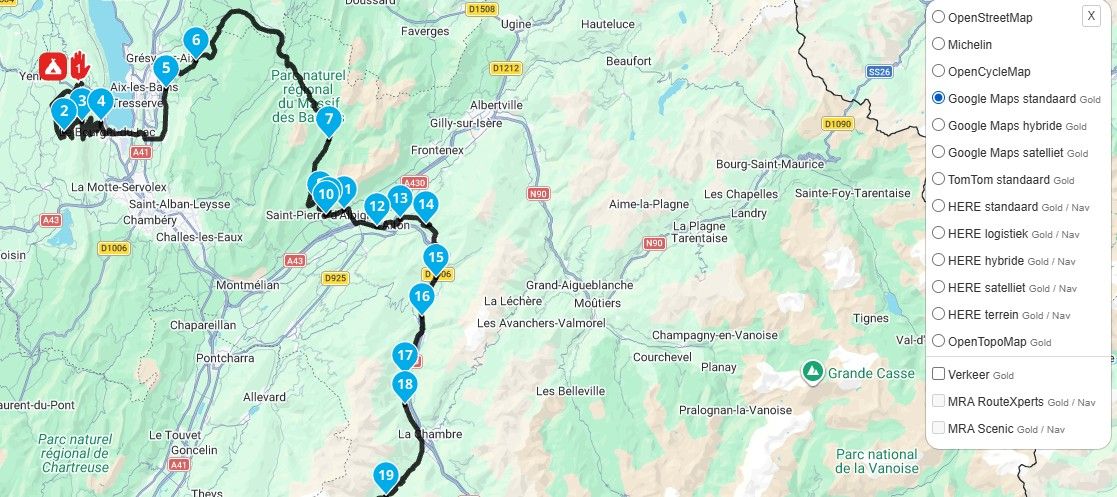
@Pim-van-Dongen Open a new route and give it the name favourites. Now select your first favourite, now open the POI section and select the manage tab. Click Add and then click on the map where your favourite location is to add a POI at that location.
Do this for all of your favourites, when you have finished click Save as and choose .csv (POI) as the option. This saves your POIs to your computer. Now go to the Library tab of the POI section and select Add, this opens an upload box where you can then choose the .csv (POI) file from your computer. -
so I have to make a specific route (without a rout but with all the waypoints) download that file as a csv and upload that one again... each time for al routes... each time I start a new route... that's not a good workflow... I just want my favourites just to be visible, also on older routes I re-use and not having to upload a csv file each time I add a new poi
-
so I have to make a specific route (without a rout but with all the waypoints) download that file as a csv and upload that one again... each time for al routes... each time I start a new route... that's not a good workflow... I just want my favourites just to be visible, also on older routes I re-use and not having to upload a csv file each time I add a new poi
so I have to make a specific route (without a rout but with all the waypoints)
No, that is not what I said. I said open a new route and add POIs at your favourite locations.
download that file as a csv and upload that one again... each time for al routes...
Again, this is not what I said, the process of adding POIs at your favourite locations and then saving the .csv file is so that you can upload the file to your POI library. This is a one off operation, once the .csv file is uploaded to your POI library you can then select it for individual routes or by ticking the profile icon your new POI (favourites) will be visible in all routes.
I can't be any clearer than that!
-
So but when I add a new fav location (which almost weekly happens) I again have to download a csv file and upload that file again to the poi library... what happens with the location which are allready there will they be doubled?
Isn't there an easy way so you can online edit that POI library -
So but when I add a new fav location (which almost weekly happens) I again have to download a csv file and upload that file again to the poi library... what happens with the location which are allready there will they be doubled?
Isn't there an easy way so you can online edit that POI library
@Pim-van-Dongen Unfortunately, at this moment in time this is your only option. If you save the route that you created a titled Favourites you can add new POIs to it and update your library file. If there was an easier way to do it I would have explained it to you. Favourites in MRA are like bookmarks, a quick way to find a favourite location. Hopefully, we will be able to organise and put favourites into folders soon but that is not possible now.
-
I also heard (viavia...) that MRA is working on its POI manager... so I just wait...
Hello! It looks like you're interested in this conversation, but you don't have an account yet.
Getting fed up of having to scroll through the same posts each visit? When you register for an account, you'll always come back to exactly where you were before, and choose to be notified of new replies (either via email, or push notification). You'll also be able to save bookmarks and upvote posts to show your appreciation to other community members.
With your input, this post could be even better 💗
Register Login
-
 0728
0728
-
0866
-
 81655.4k
-
0344
-
 01089
01089
-
0579
-
1833
-
0230