"Route as Track" wird nicht wie geplant navigiert
-
@Martin-Wilcke said in "Route as Track" wird nicht wie geplant navigiert:
I meant "navigating" in a wider sense: when I come to a point where the lines diverge, I can choose to follow the blue line (with instructions) or the white line (on sight).
You are already free to make that choice yourself, aren't you?
@Martin-Wilcke said in "Route as Track" wird nicht wie geplant navigiert:
it also happens when using TT instead of OSM
No, I tested your file, and with TT as basemap it loads just like it is, and does not lead me over A7. It just chooses a different curvy (tomtom) path, but leaves it intact when navigating.
@Martin-Wilcke said in "Route as Track" wird nicht wie geplant navigiert:
I always thought I'd only get both lines if I used "Routes as track," but I've now learned that's not necessary at all.
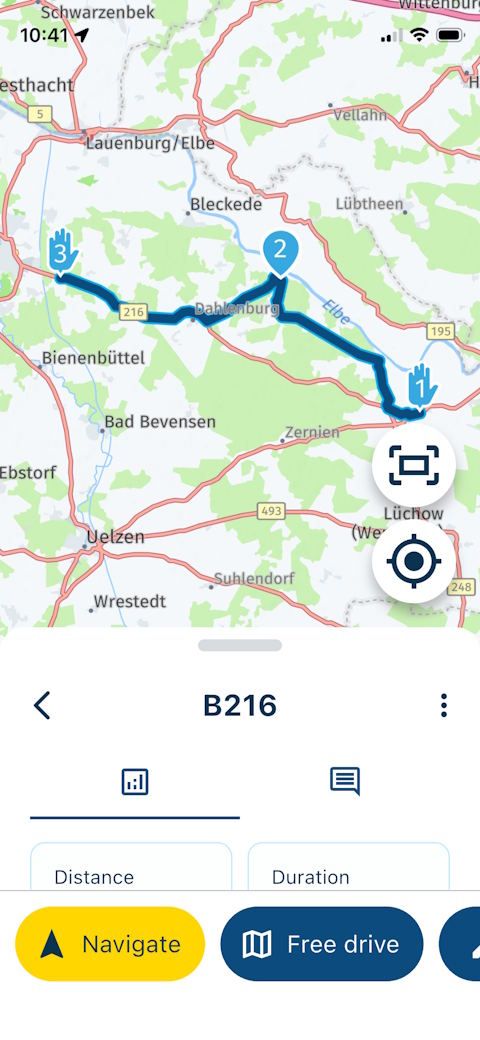
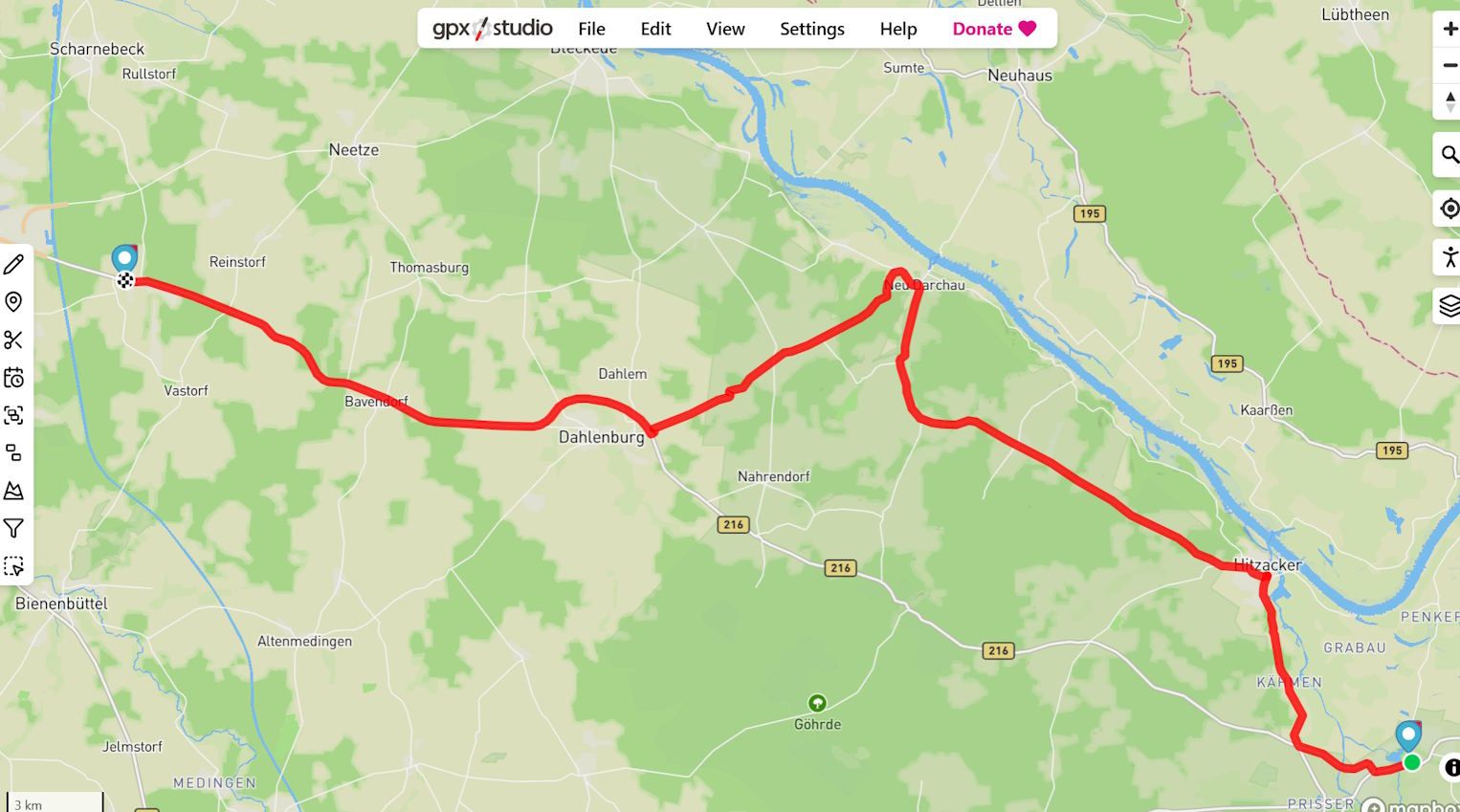
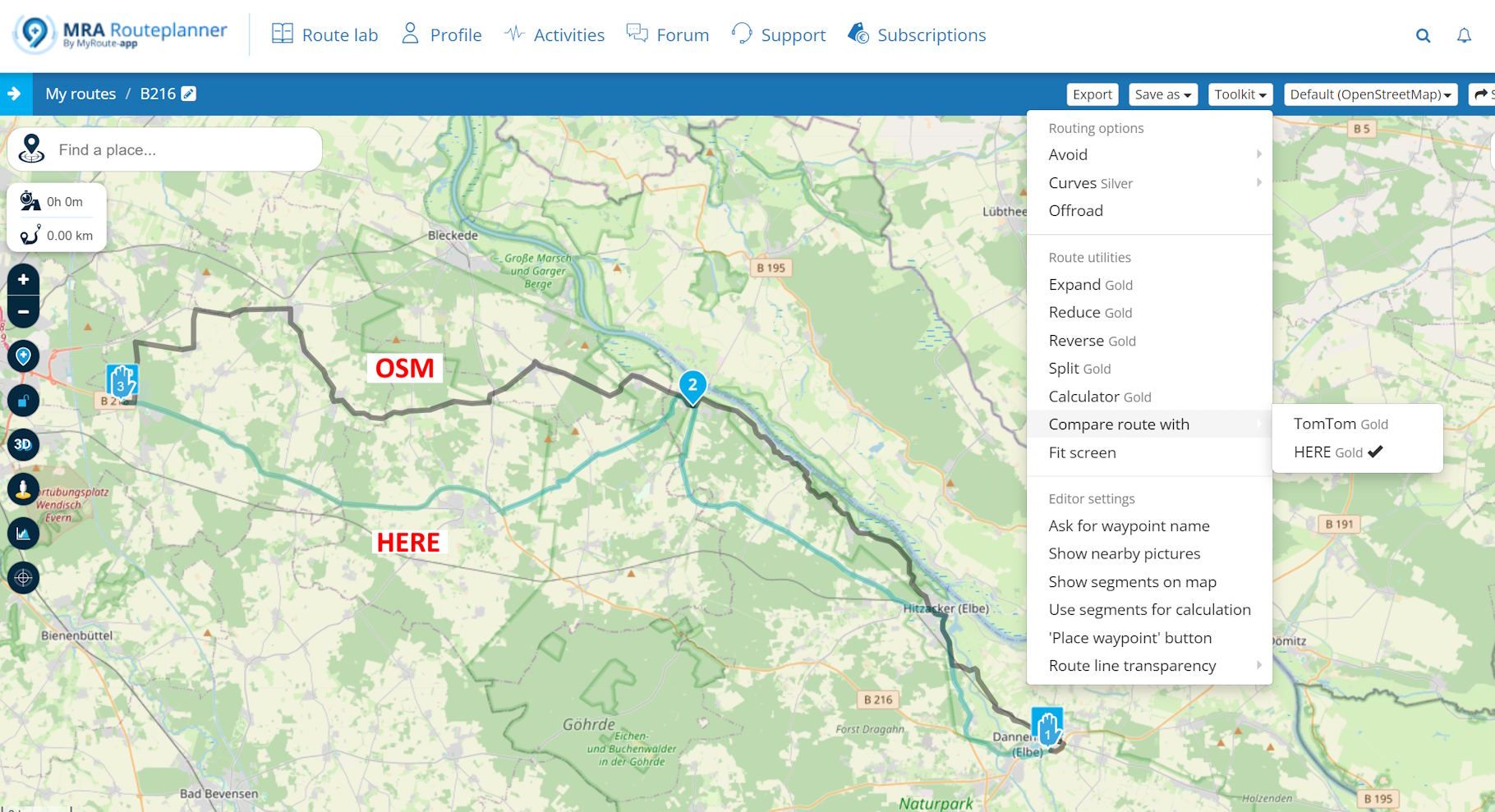
That's a misconception. The white line just represents the original route or track. If you look at your example from message 26:

WP3 and 4 are not on navigational roads (off road paths according to HERE) so the app is trying to avoid those. Whenever there is a navigational road on the HERE map, close enough to the waypoints, it will use those.
@Con-Hennekens said in "Route as Track" wird nicht wie geplant navigiert:
You are already free to make that choice yourself, aren't you?
Sure. Even if I don't navigate a route at all. But that's not the point here, right?
-
@Con-Hennekens said in "Route as Track" wird nicht wie geplant navigiert:
That's a misconception
OK - so, if I plan a route with OSM that includes tracks not in HERE (as in #26 around WP 3/4), and I open it for navigation: What is the difference between having "Routes as track" toggled on or off?
And if there is no difference, what is "Routes as track" good for?@Martin-Wilcke said in "Route as Track" wird nicht wie geplant navigiert:
OK - so, if I plan a route with OSM that includes tracks not in HERE (as in #26 around WP 3/4), and I open it for navigation: What is the difference between having "Routes as track" toggled on or off?
And if there is no difference, what is "Routes as track" good for?There will be no difference, since routes created in the OSM or TomTom map are opened as tracks anyway. The only way "route as track" does anything, is when you open a route based on HERE for navigation.
-
@Martin-Wilcke said in "Route as Track" wird nicht wie geplant navigiert:
OK - so, if I plan a route with OSM that includes tracks not in HERE (as in #26 around WP 3/4), and I open it for navigation: What is the difference between having "Routes as track" toggled on or off?
And if there is no difference, what is "Routes as track" good for?There will be no difference, since routes created in the OSM or TomTom map are opened as tracks anyway. The only way "route as track" does anything, is when you open a route based on HERE for navigation.
@Con-Hennekens said in "Route as Track" wird nicht wie geplant navigiert:
The only way "route as track" does anything, is when you open a route based on HERE for navigation
Ahh, good to know.
And what is the difference then? Or, in other words, what is the difference between route navigation and track navigation?
I can't find an explanation in the manuals, and the app's info pop-up (regarding "Navigate routes as tracks") states: "Choose this when you prefer the accuracy of a track". What does it mean?
I don't want to be annoying, I just want to clarify my previous understanding.
-
@Con-Hennekens said in "Route as Track" wird nicht wie geplant navigiert:
The only way "route as track" does anything, is when you open a route based on HERE for navigation
Ahh, good to know.
And what is the difference then? Or, in other words, what is the difference between route navigation and track navigation?
I can't find an explanation in the manuals, and the app's info pop-up (regarding "Navigate routes as tracks") states: "Choose this when you prefer the accuracy of a track". What does it mean?
I don't want to be annoying, I just want to clarify my previous understanding.
@Martin-Wilcke, haha, nothing annoying to it
The difference is mainly how the auto-skip function works. When navigating a route, the auto-skip can only skip to the next route point. When you navigate a track, it looks for a "logical" re-entry point anywhere on the track. Navigating a track certainly also helps when there are offroad parts in your track. -
@Martin-Wilcke, haha, nothing annoying to it
The difference is mainly how the auto-skip function works. When navigating a route, the auto-skip can only skip to the next route point. When you navigate a track, it looks for a "logical" re-entry point anywhere on the track. Navigating a track certainly also helps when there are offroad parts in your track.@Con-Hennekens said in "Route as Track" wird nicht wie geplant navigiert:
The difference is mainly how the auto-skip function works
Yeah, that was my first thought, too. Thanks for the explanation.
And, you wrote “route point,” not “waypoint” - I can't believe I'm actually seeing this

-
Thank you all. Reading along has helped me understand some of it better now; I had already suspected it, but now it's been confirmed.
-
@Con-Hennekens said in "Route as Track" wird nicht wie geplant navigiert:
The difference is mainly how the auto-skip function works
Yeah, that was my first thought, too. Thanks for the explanation.
And, you wrote “route point,” not “waypoint” - I can't believe I'm actually seeing this

@Martin-Wilcke said in "Route as Track" wird nicht wie geplant navigiert:
And, you wrote “route point,” not “waypoint” - I can't believe I'm actually seeing this
A route point actually is just a waypoint that defines a route

-
This issue has just been resolved!
No app update required, I've fixed the problem in the remote API.The OSM route is now correctly loaded by the app allowing track navigation to proceed as expected.
-
I just checked it again: When you plan a route using OSM and set the “Curves > Average” option, the app now navigates the route exactly as planned. Great!

-
I just checked it again: When you plan a route using OSM and set the “Curves > Average” option, the app now navigates the route exactly as planned. Great!
@Martin-Wilcke welcome